A Touch of Realism Tutorial

How to make a map. Official Handbook, Guides, Tutorials and more...

Moderator: Cartographers

Forum rules
Please read the Community Guidelines before posting.
Post Reply
User avatar
sailorseal
Posts: 2735
Joined: Sun May 25, 2008 1:49 pm
Gender: Male
Location: conquerclub.com

A Touch of Realism Tutorial

Post by sailorseal »

A Touch of Realism Tutorial:
Now sometimes in the map making process you need to change the color of something or neutralize a certain color or tone down a color. Here are a few tricks to help you accomplish whatever goal you may have :D

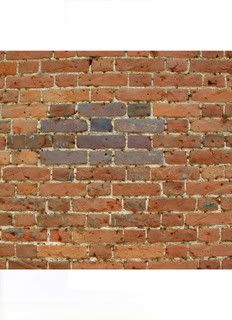
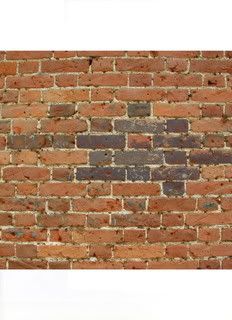
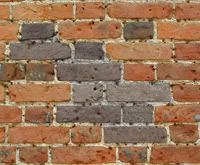
For example purposes I will use a brick wall
Click image to enlarge.
image
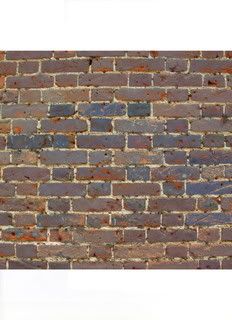
I have also selected the color blue for it is a more difficult color to do this with and thus will make the tutorial more of a one size fits all.

Step 1:
Begin by selecting a image and a color(s) to use

Step 2:
Select a low opacity and the fill tool

Step 3:
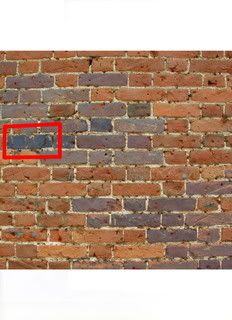
Begin filling
Click image to enlarge.
image
Now along the way there are a few common problems you will run into.
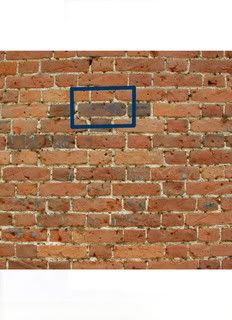
Problem 1:
Click image to enlarge.
image
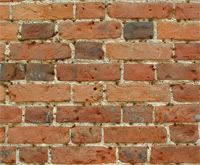
Now sometimes parts of the image are naturally darker and this will mix with your color causing it to appear darker then the area around it.
Unto your fill and tone down the opacity. Then try filling it twice. Never fill more then three times or you will lose the realism affect. This is a trial and error part to see which opacity works best depending on the image.

Problem 2:
Click image to enlarge.
image
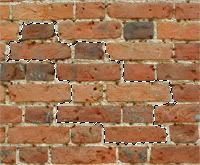
If the fill appears dotted and does not look realistic. First undo the fill. Then do the same fill with a lower opacity. It should look the same but lighter.
Click image to enlarge.
image
Then zoom very far in and select no more then two areas where the fill is most dotted. Return to your old opacity and fill in these parts.

Sometimes a bit dotty can look good to simulate wear:
Click image to enlarge.
image
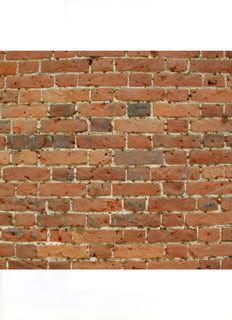
Continue this then sit back and enjoy your beautiful new image, with a Touch of Realism:
Click image to enlarge.
image
User avatar
MrBenn
Posts: 6880
Joined: Wed Nov 21, 2007 9:32 am
Location: Off Duty

Re: A Touch of Realism Tutorial

Post by MrBenn »

There are easier ways of achieving the same effect, although it depends which software you're using...

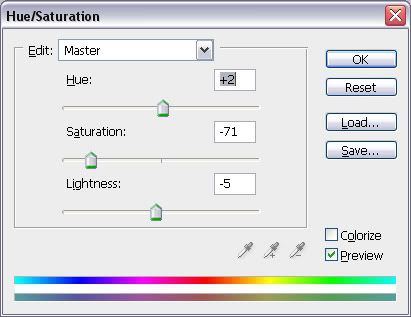
In Photoshop you can simply select the area you want to adjust the colour, and select 'Image > Adjustments >Hue/Saturation'...

Image Image Image
Image
Image
PB: 2661 | He's blue... If he were green he would die | No mod would be stupid enough to do that
User avatar
sailorseal
Posts: 2735
Joined: Sun May 25, 2008 1:49 pm
Gender: Male
Location: conquerclub.com

Re: A Touch of Realism Tutorial

Post by sailorseal »

MrBenn wrote:There are easier ways of achieving the same effect, although it depends which software you're using...

In Photoshop you can simply select the area you want to adjust the colour, and select 'Image > Adjustments >Hue/Saturation'...

Image Image Image
Image
Well then this is for people using a simpler program but thanks for showing that, it is useful to me :D
Post Reply

Return to “Tools & Guides”